Please wait...


Uploading (and Copying) Documents
Organizing and Sharing Documents
Basic Document Uploading
Document Preview & Editing (and image overlays)
Advanced Document Features
Your Upload Begins!
Copying Documents
- Organizing and Sharing Documents
- Start with groups.
- Create a private or public group using the Create Groups button in the right column next to your library. Last names can be hidden in public groups.
OR - Join an already existing public group. See the public groups, identified with icons on the bottom half of the NowComment home page.
- Invite students, colleagues, or friends to the group that you just created (and made public or kept private) or joined, using the Invite button in the top-left corner of the main menu.
- Create a private or public group using the Create Groups button in the right column next to your library. Last names can be hidden in public groups.
- Create or Add to Group Collections.
- Create a private or public Group Collection on a Group page using the Create a Group Collection button in the top right corner of any group page.
- Groups are private by default. Any members of a group and anyone you invite to it will be able to add to the collections in that group.
- You can choose to make a collection public. Any NowComment member can join a public group and be able to add to the collections in that group.
- You can also add documents you have already created to already existing public collections in any group in which you are a member.
- Invite students, colleagues, or friends to the collecction that you just created (and made public or kept private) or added to, using the Invite button in the top-left corner of the main menu.
- Create a private or public Group Collection on a Group page using the Create a Group Collection button in the top right corner of any group page.
- Create and Add Documents to Group Collections.
- Add a document that you have already created to any public group collection in a group in which you are a member.
OR - Go back to any group in which you are a member, and use the Upload Document button, in the middle of the main menu to upload videos, images, or texts that you want in your new group collection. Then add those documents to the group collection you created or that you are adding to. You can also add documents to collections in the options next to each document in your library.
- Documents are private by default and you can make them public. If you add a private document to a public collection, you will be prompted to agree to making your document public when you add it to that public collection. Last names can be hidden on private and public documents.
- Use the Invite button in the left corner of each document (both public or public) to invite others to also join you on those documents.
- Add a document that you have already created to any public group collection in a group in which you are a member.
- Choose the public group where you will make a public group collection. Decide which one of the 17 United Nations Sustainable Development Goals most closely relates to your topic, issue, or question. Search the internet with a keyword from your topic along with the words “UN Sustainable Development Goals” (SDG) and see where your inquiry seems to fit.
- After choosing your SDG, join the study group on NowComment for that SDG. Click here to find the 17 study groups for the UN Sustainable Development Goals.
- Hit the Create a Group Collection button and create a public collection for the videos, images, and texts that you want to organize together and share with others.
- Add a document that you have already created to the group collection that you just created.
OR - Go back to the Study Group, and upload videos, images, or texts that you want in your new group collect. Then add those documents to the group collection you created.
- Use the invite buttons to invite others to also join you in three places:
- The UN SDG Study Group where you have created a collection.
- The public group collection.
- Each document you create.
- Basic Document Uploading
- Microsoft Word or Excel
- Image (various formats, no OCR)
- Web Page (HTML) Content — Text+Images and Video Techniques
- Plain Text
- Microsoft Word and Excel — .doc, .docx, .rtf, .xls, .xlsx file extensions
- Create a folder on your Mac or PC so that it will be easy for you to locate the downloaded images in STEP TWO, below.
- You will also need to change your browser settings to use this folder as the default for your downloads. See: How To Change The Default Downloads Folder On Your Mac OR How To Change Default Download Location In Windows 10.
- If you are using Google Slides: Click on each slide, one at a time, and download each as an individual image. Click a slide > File > Download > JPEG image or PNG image. Alternative bulk downloading: Open your slideshow in PowerPoint or Keynote and download the all the slides as images in PowerPoint or Keynote.
- Steps to follow: Go to File > Page setup > Choose Orientation: Landscape > All margins: 0.5 inches.
- Click Insert > Image > Upload from computer. Find the images you downloaded in STEP ONE, above. Select all of them, and upload them together or one-by-one.
- Check to see that they are in the right order and all the same size. If needed, position and edit the images in the document.
- Once you have the images the size and in the order that you want them to appear on NowComment, download your Google Doc as a Microsoft Word. Steps to follow: File > Download > Microsoft Word (.docx).
- Steps to follow: Go to Layout > Margins > Narrow > Orientation > Landscape.
- Click Insert > Pictures > This Device. Find the images you downloaded in STEP ONE, above. Select all of them, and upload them together or one-by-one.
- Check to see that they are in the right order and all the same size. If needed, position and edit the images in the document.
- Once you have the images the size and in the order that you want them to appear on NowComment, save your document as a .docx. Steps to follow: File > Save as a .docx.
- Image/Photo
- Alt text — short alternative text for those who are visually-impaired or using non-visual web browsers. For example, Alt text for a photo of a stop sign might be "red stop sign" (without quote marks)
- Tooltip — this is text that will pop up when someone who can see the image mouses over it. It can be the same as the Alt text.
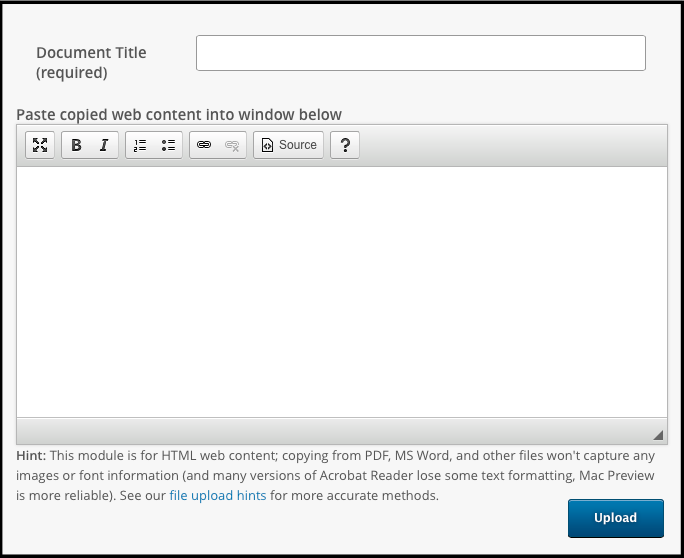
- Copy-and-Paste from Web Page (HTML)
- Give your document a Title
- Copy all the text and images you want in your document from the desired web page(s), then paste what you copied into the big data entry box (under Document Title). You can delete any content not needed for discussion (e.g. irrelevant text and graphics, advertisements, site navigation links, whatever!) from the data entry window to give your readers a clean, customized document.
- If there is video or audio content from that page (or from other pages or sites!) that you also want in your document, copy and paste the embed codes from each media player (see next section); copying the media player itself, unlike copying text and images, will not work.
- Click the blue “Upload” button (toward the bottom right corner of your screen) to upload your document
- copy-and-pasting various text, images, and media player embed codes from various sites into the initial document upload, or
- later appending new material (e.g. adding a video to an MS Word document)
- PDF, Excel, PowerPoint, MS Word, and other documents in proprietary formats, even if online, are not really HTML, and copy-and-pasting their content into an HTML data entry window won't give good results. For file conversion tips see our upload hints page.
- There are editing control buttons at the top of the copy-and-paste window:

The icons (reading left to right) let you:
- Maximize the size of the data entry window (full screen)
- Bold text
- Italicize text
- Format text as a numbered list
- Format text as a bulleted list
- Create a hyperlink
- Remove a hyperlink
- For those comfortable working with HTML, use the “Source” button to view the HTML source… or edit and then upload the document's HTML markup for maximum control over your document's display
- Get additional “Help” information on these controls
- “Text I'll Write Now”
- Document Preview & Editing (and image overlays)
- as currently formatted (with possibly split paragraphs), and also
- with lines joined (possibly restoring coherent paragraphs)
- Advanced Document Features
- set date/time due (with optional email reminder)
- set Minimum and/or Maximum number of Comments
- don't let others read this document before a date/time I set
- don't let others comment before a date/time I set
- don't let others see comments before a date/time I set
- let anyone on the Internet read this document (a “Public Document”
- email me all comments on this document (“Updates”)
- disallow Revision Suggestions for the document text
- all invited users can append content
- customize meanings of highlight colors
- supply bibliographic document information (metadata)
- show me private replies too — users will be warned [Note: used mainly when an Instructor needs to see private comments between students]
- turn off the Image Commenting toolbar (useful in cases where the page aesthetics are critical and the NowComment toolbar would be out-of-place)
- Your Upload Begins!
- Copying Documents
- Make Multiple Copies (no copying to Groups)
- Make Multiple Copies and Share them with Groups
See below for how to Create a Public Collection for a Social, Political, Historical, Issue on NowComment
Create a Public Collection for a Social, Political, Historical, Issue on NowComment
To make a document available on NowComment, click the “Upload Document” link at the top of almost every page. This will take you to our upload page where you can upload documents in any of five file formats:
Click the button corresponding to the file type you want to upload to reach the appropriate upload window:
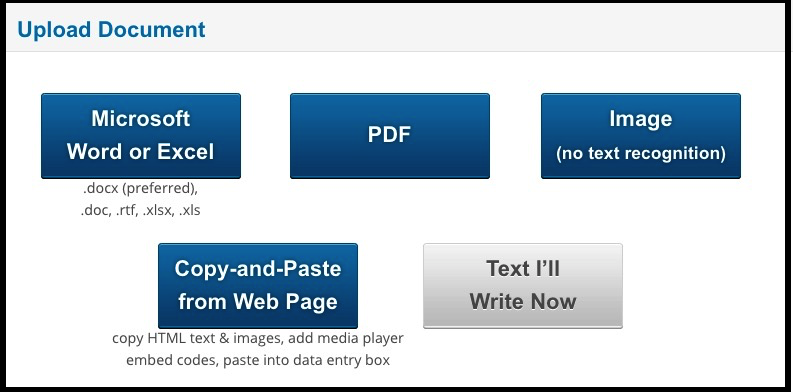
If your file type isn't one of the above (e.g. if it' PowerPoint or LaTeX) then open the application you used to create that file and use its File Menu to do a “Save As” or “Export” or “Print to PDF” to convert your document to one of the five formats we accept (or perhaps use a 3rd party converter application). Copy-and-pasting from another format will almost never give good results, e.g. your document may wind up with white space (carriage returns) after every physical line rather than just between paragraphs.
Note these general upload hints and limits:
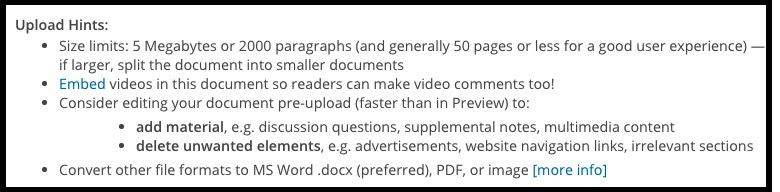
We'll now explain how to upload each format in detail:
A directory window will immediately open so you can select your upload file:
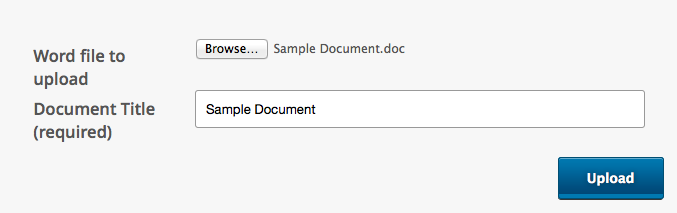
Once selected, you can use the file name as your document title or, more commonly, give the document a more explanatory name (if you change your mind about which file to upload you can choose another file by clicking the small gray “Choose File” button next to the name of the currently selected document).
Now click the blue “Upload” button (toward the bottom right corner of your screen) to upload your document.
1A. Uploading a Microsoft Word document after Inserting Multiple Images of a Slideshow
✔ Take a moment to quickly scan all three steps, and note that these are pretty easy moves that you probably already know how to do. All you have to do is DOWNLOAD, INSERT, and UPLOAD. The details and links are here to support you in this process.
STEP ONE. Download each of the slides from your slideshow as an image.
✔ Check to see that you have a group of image files on your computer with .jpeg or .png extensions. Each file is one of the slides from your slideshow.
STEP TWO. Insert the images into a Google Doc OR a Microsoft Word document.
Google Docs: Open a new Google Document and insert the images after changing the page settings.
Microsoft Word: Open a new document in Microsoft Word and insert pictures after changing the page margins and orientation.
✔ Check to see that you have a Microsoft Word (.docx) file on your computer with the images from your slideshow inserted and sorted in the order of your presentation.
STEP THREE. Upload your Microsoft Word .docx to NowComment.
See Basic Document Uploading and 3. Create and Add Documents to Group Collections.
✔ Check to see that you have a NowComment document with the images from your slideshow ready for discussion. You can invite individuals and groups to add comments and replies to your document.
Once you've selected a PDF file and specified a document name, NowComment will use a 3rd-party converter to turn your PDF into an HTML document. The converter will ask you two questions (one at a time, but both shown here):
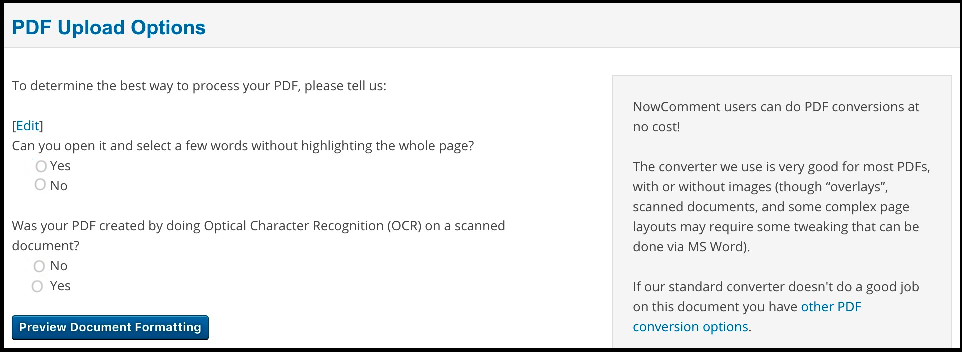
If your document doesn't come out well-formatted, see other PDF options. Image overlay issues are discussed below.
You can upload a document containing only a photo or other image and comment on it with our image toolbar. At any point afterwards you can also append text and/or video and/or another image to the image you've uploaded.
NowComment handles JPEG, Png, Gif, Tiff, and SVG formats. We strongly suggest avoiding Tiff because most browsers can't display that format.
Image file uploads work basically the same way as other file types:

except that it is good practice to also provide information for two image-specific fields:
You can now click the blue “Upload” button (toward the bottom right corner of your screen) to upload your image.
Four easy steps:
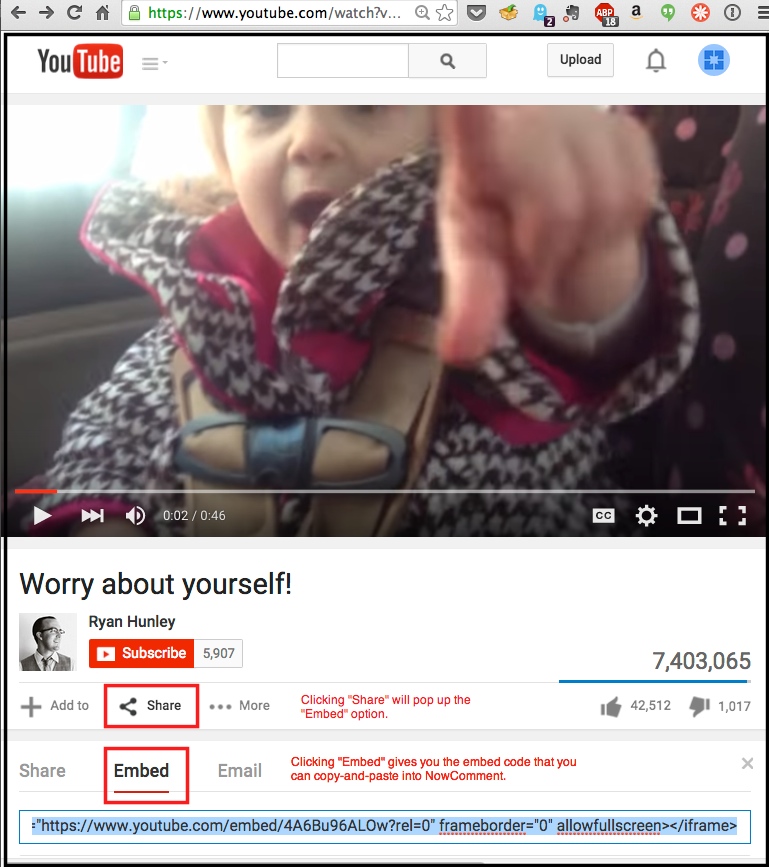
For video and audio players, paste their embed codes (sometimes referred to as “Share” or “Sharing” information) into the NowComment data entry box wherever you want that media player to appear in your document; you have control over the page arrangement! We recommend that you use the Edit Menu of your operating system to do the pasting of the embed code (what some of them call call “Paste and Match Style”) instead of just doing a regular “Paste” via Control-V or Command-V; this ensures that you're not inserting any extraneous HTML formatting from the embed code that might interfere with our software.
Again, note that copy-and-pasting the media player itself won't work!
Here's a YouTube example of where to find, and then copy-and-paste, an embed code:
You can have content from multiple websites in a single NowComment document, either by:
Hints for Copy-and-Paste Uploads
You can write something on the spot with this option, e.g. a quick note or an idea you'd like some quick feedback on. You can add HTML web content to it if you wish. This module looks and works just like the Web Content (HTML copy-and-paste) module above.
Once you've titled and uploaded your document, NowComment will then preview your document's formatting (note the faint red word “Preview” in the background) and make small edits (e.g. fixing typos):
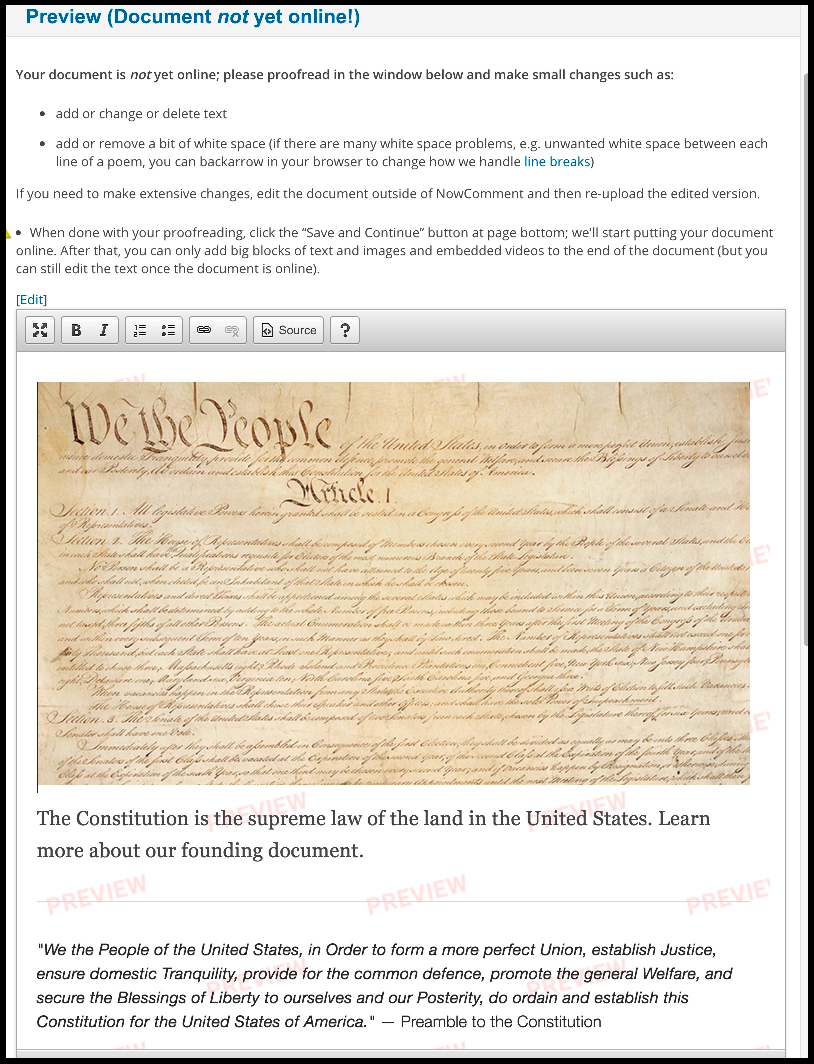
Text and images will appear in the Preview window; video/audio media players will not, but as long as the video/audio embed code is showing in Preview the player will appear online when the document upload is finished.
If NowComment detects multiple “paragraphs” that don't end with punctuation (perhaps from trying to copy-and-paste a PDF or other file with extraneous carriage returns) it will show you an excerpt of your document:
You then chose which formatting you prefer; you probably don't want to join lines in poems and some other special case documents (but in these cases you should use line breaks instead of carriage returns, see our tips on avoiding unwanted white space).
If extensive changes are needed, or if the document's formatting is a problem, it's best to make the edits outside of NowComment and then re-upload the document. But if you're satisfied with your document, click “Continue”.
NOTE: NowComment can display the vast majority of images without problem. Some PDFs and Microsoft documents, however, contain “overlay” images that look like a normal image but have both a text layer (e.g. the names of states) displayed on top of an image layer (e.g. a map of a country). HTML, the basic building block of the Web and NowComment, can't display such 2-layer images properly (among other problems, they use “absolute positioning” which doesn't work with browser windows of various sizes. If NowComment detects overlays we'll flag the problem before you reach the Preview page and will present some workaround options. For more information see our overlay documentation.
You can then select the following advanced features for your document:
Assignment Fields
Time Controls
Special Features
An “i” information icon appears next to each choice explaining it more fully. If an advanced feature is set via the 's “Edit Properties Page” NowComment will take you to that page directly.
When done reviewing these optional features, click “Continue” and your document will begin uploading.
A yellow message area at the top of the next page will show you the status of the upload, eventually ending with a message “Your document is ready; view it now!”:

Your document is now online; click the “view it now” text link to go your document and start commenting on it, and/or share it with others.
This isn't necessarily part of uploading a document, but it lets you upload a document just once even if you want multiple groups/classes to comment on it separately from each other.
From your My Library page (Options menu) or from the “More” dropdown menu when reading the document, choose “Copy”. You'll then have two options (on two tabs):
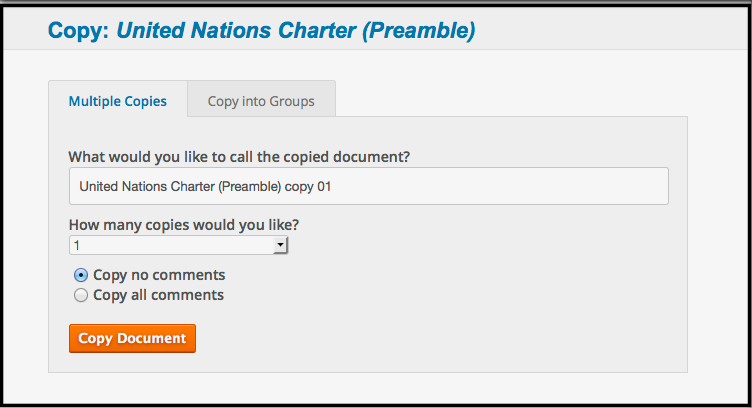
If you aren't using Groups, specify how many copies you want, what suffix should be appended to each document so you can distinguish the various copies form one another (default is copy 1, copy 2), and whether existing comments on the original should or shouldn't be carried over to each copy (teachers might want to “prime the pump ” by inserting some notes or questions as comments).
The image below looks like the one above, but the 2nd (rightmost) tab is shown here.
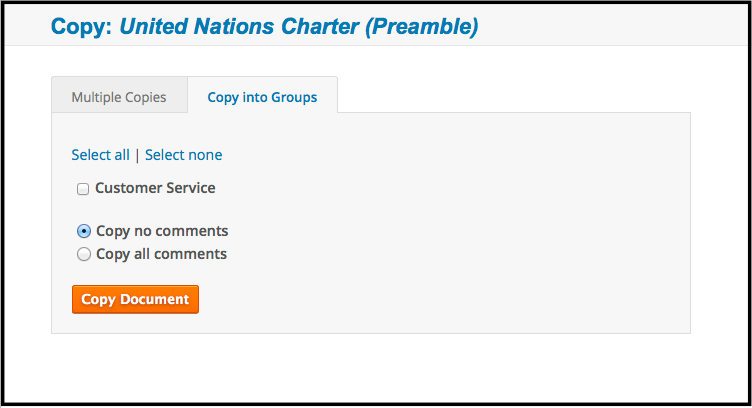
This feature pulls up a checkbox list of all the Groups you're an Admin for (in the screenshot example above there's just the Customer Service group) and lets you share a copy the document with each Group you click on (or click the “Select all” link for all) and automatically invite each selected Group to the document… all in a single step! The Group name is automatically used as a suffix at the end of the document name so you can distinguish the copies from one another.
That's all you need to know about uploading documents. It's very easy and only takes about a minute; try uploading a test document now!
We have other videos and tip files to help you get the most out of NowComment … and do take a look at our “Features Gallery” overview.
[Last updated: January 7, 2022]
NowComment sometimes uses Abbyy tools for PDF upload. Abbyy requires the following legal notices:
This software uses ABBYY® FineReader® Engine 11 2013 recognition technologies © 2013, ABBYY Production LLC.
ABBYY and FINEREADER are trademarks of ABBYY Software Ltd., which may be registered in some jurisdictions.
The use of Type 1 fonts for export to PDF:
© 2001 ParaType Inc. © 2003 ParaType Inc. Opening DjVu images: © Portions of this computer program are copyright 1996-2007 LizardTech, Inc. DjVu is protected by US patent No. 6,058,214. Foreign patents pending.
U.S. Patent Nos. 5,490,216, 5,625,465, 5,768,416 and 6,094,505.
Abbyy licenses JasPer Version 2.0.
 icons on the left to see existing comments.